
Moving and Embedding Objects In EverWeb
June 11th, 2026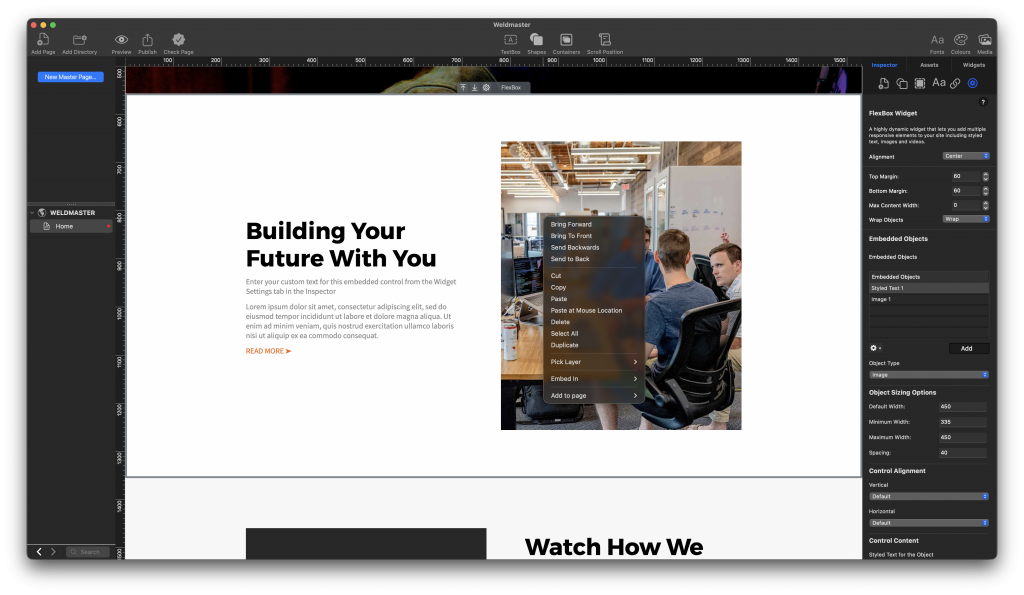
When developing your website, you will be adding and moving objects around the page so that all your text, images, and media are correctly placed and spaced. For fixed width page designs in EverWeb this is straightforward, you just drag and drop. If you are working with Responsive pages, you may find that you have to work in a more constrained way due to the nature of Responsive Web Design.
Moving Objects Around Responsive Pages
EverWeb helps you with object placement in responsive pages in a number of ways. In this post, we will be referring to the features found in EverWeb 4.4. If you are using an earlier version of EverWeb, some of the features described below may not be present, or may work in a different way than described below.
When you add a full-width object, for example a shape, to the page, you will see that its Object Label Toolbar includes up and down arrow icons so you can move the object up and down the page. You can also just drag and drop the shape up or down the page, no problem, and use the up/down icons only when you need to be sure of object placement, for example in a complex page design.
If you are using a full-width widget, such as the FlexBox or Responsive Row widget, or a Container, you will also notice that there is a Move icon in the top right-hand corner of the object. In a Responsive page, this can be used to move the object up and down the page. So far, so good, but what happens when you want to move objects that have been placed within other objects?
Moving Objects Contained Within Other Objects
When you use a Container or the Responsive Row widget in a Responsive page layout, you will be using such objects for a reason – to place other objects inside them. When you do this, there may be times where you want to move one or more objects to a different location within the Container or Responsive Row. Easily done, just drag and drop the object to its new location. As you do so, you will see a vertical or horizontal dashed line appear between the object being moved and the objects that are not being moved. Again, this is to help make object placement easier visually.
Moving objects between Responsive Rows and/or Containers is also a drag and drop operation and again, you may see a dashed guideline to hope you with placement when you do this.
When using a Container Free Flow, you will see the Move icon again if you have other Containers within the Container Free Flow. In this case, you can move the inner Container in any direction around the Container Free Flow.
Embedding Objects
Drag and drop is usually the easiest way to move an object from A to B, but in some instances you may prefer a different approach. This may be the case when you have a complex page layout, or when you want to move an object from the top of the page to the bottom of the page. In such cases, you don’t want to accidentally drop the object in the wrong place, as this can disrupt your page layout. The simple option in this scenario is to use the Embed In option. All you need to do to use this feature is right-click, or secondary-click, on the object you want to move. You will see a menu of options. Scroll down to Embed In. Off of this menu, you will see a list of objects that you can embed the selected object into. Select the object you want to embed the selected object into.
Naming Objects
If you have a complicated page design, you may want to name some or all of the objects that you use on your page. This makes referencing them easier later on. In our example above, the list of objects to embed in to might have been, for example, ‘Container 1′, Container 2’, ‘Container 3’. If these objects had been named it would probably have made it easier to choose which object to embed the selected object into e.g. ‘Header Container’, ‘PayPal Container’, ‘Footer Container’.
In EverWeb 4.4 you can easily rename many object types using the Widget Settings in the Inspector Window or by clicking on the Settings Cog in the Object Label Toolbar of the object you want to rename. As of EverWeb 4.5, you will be able to just double click on the object’s name in the Object Label Toolbar to be able to rename it.
Removing Objects From a Container or Responsive Row
The easiest way to take an object out of another object is to drag it outside of the object then drop it to where you want. If, however, you want the object to be independent of any other object, then right click, or secondary-click on the object you want to remove. From the menu options, choose Remove from Container, or Remove from Responsive Row. In both cases, the object that is removed will become a full width object. You can then decide what you want to do with the object in question.
Remember Pick Layer!
If you have any difficulties selecting the object that you want to move, for example, you may have objects on top of each other, then right click on top of the object then use Pick Layer. This menu option will show you the list of objects that are stacked on top of each other so that you can select the correct one to move or manipulate.
Using EverWeb’s Embed In, Remove from and Pick Layer options make it easy for you to choose the object you want and move it to where you want it hassle free!
 Twitter
 Facebook
 Youtube
 Blog RSS