As MobileMe is being discontinued in less than 2 weeks, many users are discovering that publishing their website to an FTP server sometimes produces cryptic errors that prevent your website from being published.
This is actually a bug in iWeb, and in most FTP publishing tools. Fortunately we have fixed this publishing bug and included it in our newest release of iWeb SEO Tool.
Now you can make sure your website lives on once MobileMe goes away on June 30th.
Plus, iWeb SEO Tool is free for users who have signed up to our iWeb Web Hosting for a year or more. Make sure your iWeb sites work perfectly with our iWeb Web Hosting and iWeb SEO Tool.
We have just released an update to WebCrusher – our utility that optimizes website’s so that they load faster in your web browser. The following updates and fixes have been added to this latest release:
[NEW] Improved Javascript optimizations
[NEW] Faster website optimizations
[FIX] Fixed problem with publishing websites to an FTP server
[FIX] Fixed certain optimizations with iWeb sites on Internet Explorer for Windows
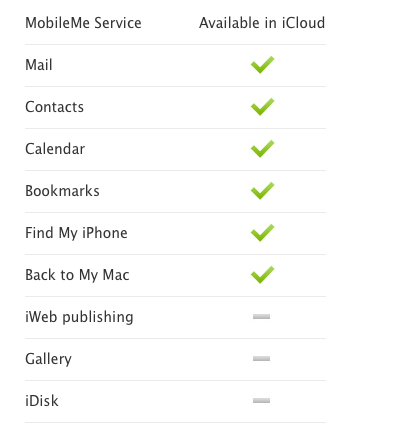
As users continue to migrate from MobileMe to iCloud, there is still the question of what services will be lost.
As we can see from this image which comes from Apple’s MobileMe transition page, the three items that are not available in iCloud are iWeb publishing, Galleries, and iDisk.
By utilizing RAGE Web Hosting, you can actually continue with these three features. Let’s discuss each of these features, and how you can continue to utilize them.
iWeb Publishing
A common mistake made by many iWeb users is thinking that because MobileMe is being discontinued, it means they can no longer use iWeb. This couldn’t be further from the truth. You will still be able to use iWeb to build your website for the foreseeable future. As a matter of fact, it is recommended that you continue to do so. There is no reason right now for there to be any panic about not being able to use iWeb.
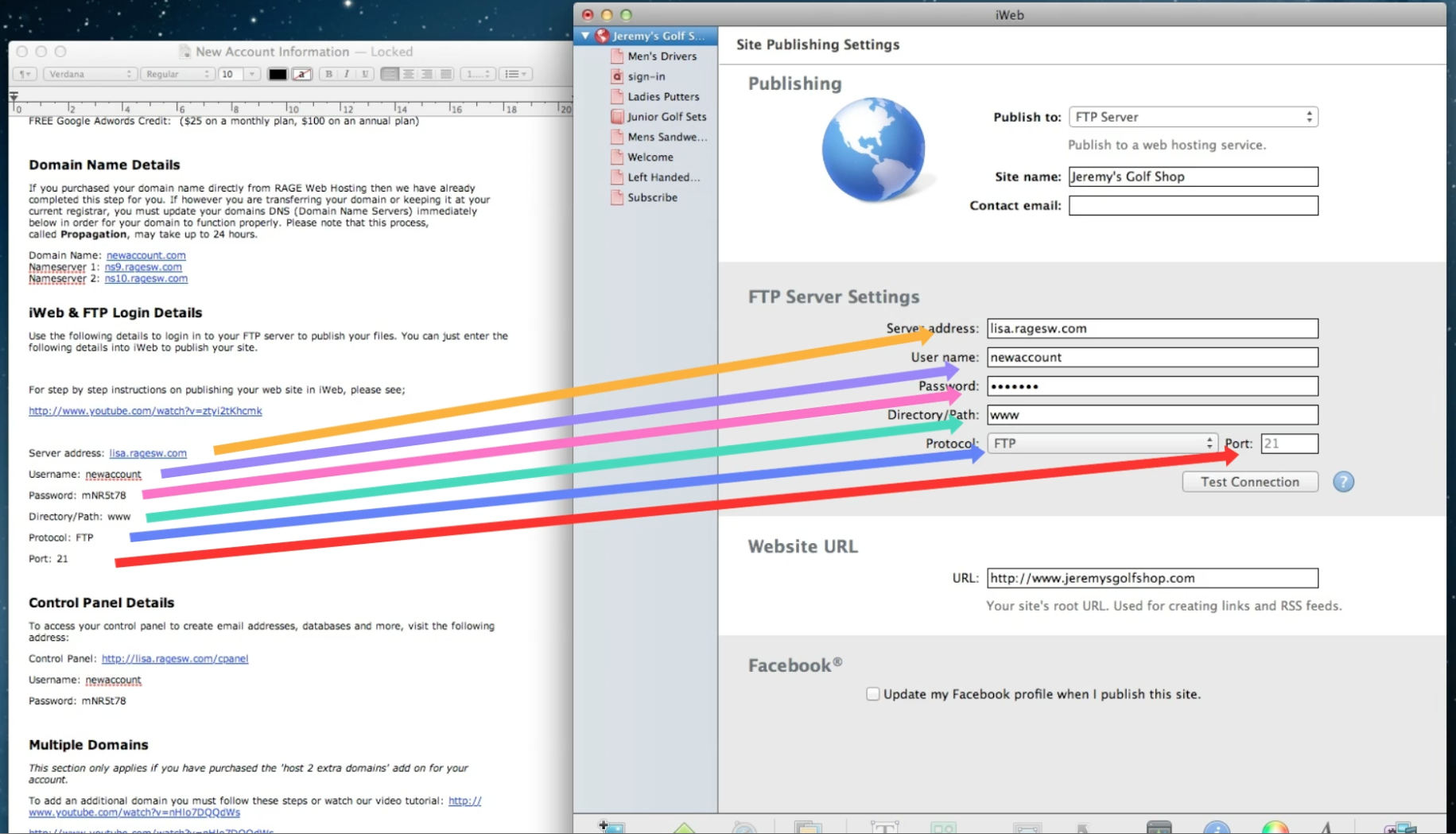
So what do you need to do in order to continue using iWeb? Well, since MobileMe took care of your publishing before, all you need to do now is find a new place to publish your website to. What this entails is signing up for hosting with a web host such as RAGE Web Hosting.
After you have signed up for your account, all you need to do is copy and paste your FTP login details. So instead of publishing to MobileMe from iWeb, you will simply publish to FTP instead, and the information you will use to publish to FTP will be given to you in an email that you will be able to just copy and paste. This only needs to be done once. After the first time, you will be able to click the Publish button like you normally would when updating your site on a frequent basis.
Galleries
MobileMe users who use the gallery feature can still have galleries by following these steps:
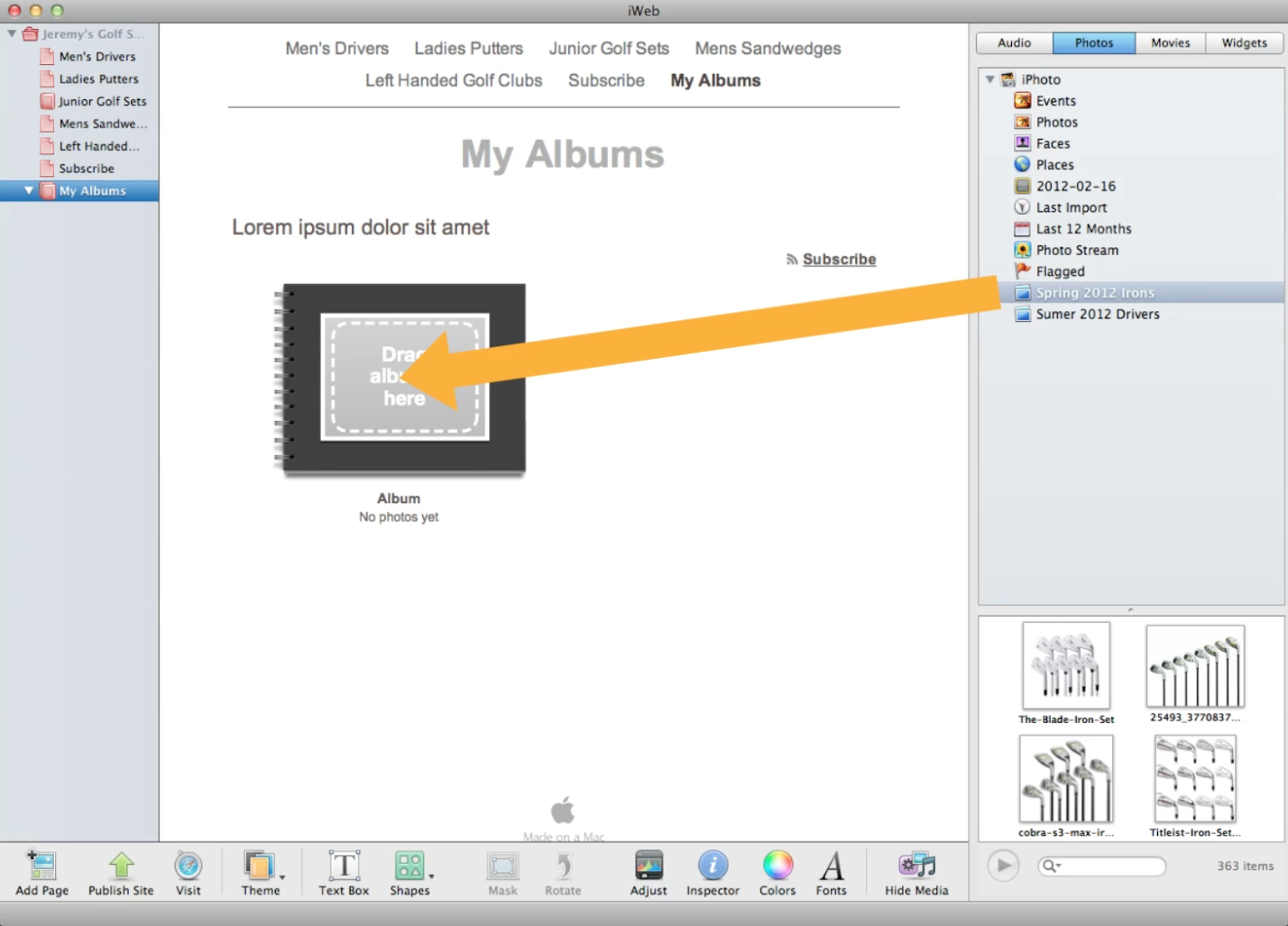
First, use iPhoto to create a photo album. When the album is complete, it will show up in the media section of iWeb. Then create an albums page, and simply drag and drop the photo album from the media section over to the albums page in iWeb.
iDisk
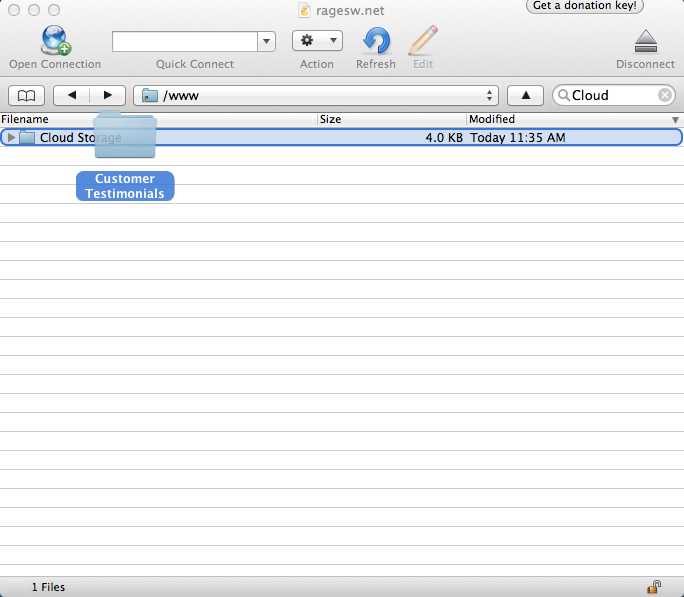
When you sign up for web hosting, you are also given web space to store files of your choice. In order to do this, you can use a free FTP client such as CyberDuck which will allow you to easily drag and drop items from your hard drive onto your server in the cloud.
To summarize, iWeb users can continue using iWeb as they did in the past. Sign up for RAGE Web Hosting today and let us help you with the transfer from MobileMe to our hosting.
We have just released an update to WebDesign, our HTML editor with built-in ready made templates, and live side-by-side previews. WebDesign’s side-by-side previews allow you to visualize your work as you edit the code.
The following are items that have been addressed in this release.
[NEW] Specify the default height and width of new document windows
[NEW] Support for additional HTML5 tags
[NEW] Plugins now get installed in the Application Support folder
[FIX] Fixed issues with color picker not inserting the selected color
[FIX] Inserting a line break respects XHTML settings
[FIX] Checking links would always report the error was on line 0
[FIX] Find all would report the wrong line number
[FIX] Clicking in the webpage preview selects the corresponding HTML and sets focus to the text editor so you can continue typing
[FIX] Webpage preview won’t cache media and css files anymore
[FIX] Quick view in the Site Manager now closes when you press the space bar
[FIX] Tools window changed to Items window
This update is free to all current WebDesign 3.x users.
After switching from MobileMe to a real web hosting service many users are finding that their web.me.com website is still appearing in Google, and often higher than their new website.
This happens because your web.me.com website has been around longer and your new website has the exact same content. Google is not likely to show two websites with the exact same content so you need to make sure you do this as quickly as possible once you move to a real web hosting service.
1) The first thing you are going to want to do is create an XML Sitemap for your new website. You can do this very easily with Sitemap Automator. Follow the instructions for publishing and verifying your website with Google Webmaster Tools (Hint: We have video tutorials on the above page that explains how to do this step by step.)
2) Delete the content from your web.me.com website. You can do this by mounting your iDisk in the Finder (or longing in to your iDisk at http://www.me.com) and going to the Web/Sites/ directory. Delete the contents in this directory.
2a) Advanced: Instead of deleting your content in step 2, you can also use a meta refresh with a refresh rate of 0 to redirect traffic from your web.me.com website to your new website. If you have set up your new website with our Web Hosting services we can help you with this. Otherwise you will need to contact your web hosting company.
3) The changes will not be reflected immediately. If you did step 2 above and you do a search for your website the web.me.com address will still appear in search results for about a week but will go to a non-existing page. If you did step 2a above your web.me.com page will still appear in search engines but will redirect to your new website. Eventually your new site will start to rank higher than your web.me.com page and your web.me.com page will be removed from Google’s search results.
4) Bonus: If you want to completely remove your web.me.com website from Google and other search engines as quickly as possible you need to create a robots.txt files that disallows search engines from indexing your website. To do this create a plain text file called robots.txt and enter the following code exactly as shown below in it;
User-agent: *
Disallow: /
Then put this robots.txt file on your iDisk in the Web/Sites/ directory. Again, if you are using our web hosting services we can do this for you. Otherwise you will need to contact your current web hosting provider.
That’s it for moving your iWeb website from MobileMe to a real web hosting service. Don’t worry, even though Apple has discontinued MobileMe, iWeb will continue to work for a long time as long as you have it installed on your computer. If you are looking to optimize your iWeb site for Google and other search engines, take a look at our iWeb search engine optimization training courses.
We have just released an update to SERank, our powerful search engine ranking tool which allows users to check their website’s rankings in multiple search engines for multiple keywords.
SERank 2.6.2 includes a dozen new local search engines, as well as fixes issues pertaining to the rank Change column. If you were/are receiving a N/A in the change column instead of the usual red number for a decrease, green number for an increase, or grey number for no change, please update your copy of SERank. Make sure to perform the search at least two times in order to get rid of the N/A.
Extra characters being added to the URL has also been corrected.
SERank 2.6.2 is a free update for all registered users. Download the SERank demo and try it out for free.
Sitemap Automator, our easy-to-use XML Sitemap creator has been updated to include a couple of fixes. Sitemap Automator now shows the proper source of broken links, as well as some fixes for various website scanning issues.
We have just released SEIntelligence 2.5, a major upgrade to our most popular SEO tool. SEIntelligence makes it extremely easy to optimize your website for all major search engines by providing step by step instructions on what you need to change in order to rank higher.
SEIntelligence also provides a detailed report on incoming links to your website and your competitor’s websites. In addition to providing important SEO metrics it also social networking metrics including Facebook Likes, Delicious Tags and now even Google Pluses.
SEIntelligence 2.5, a free update for registered users, provides even more incoming links for any website and adds supports for Google Plus. Now you can see how many times any website has been added to a user’s Google Plus account. SEIntelligence 2.5 also fixes some important bugs and adds additional local search engines to help get your top competitors.
Download the SEIntelligence demo for free to try it out.
SEIntelligence, our powerful all-in-one search engine optimization application is much more powerful than iWeb SEO Tool, and can be the difference maker for a user trying to rank higher in search engines. With direct instructions on how to optimize your website, SEIntelligence makes it easy for any user to optimize their website. In the tutorial below, we will give you a quick tour of SEIntelligence and show you how it works and how it can help you. As noted in the video, SEIntelligence would replace iWeb SEO Tool, so you would not need to use both iWeb SEO Tool and SEIntelligence, just SEIntelligence.
Video Transcript:
A lot of you are using iWeb SEO Tool to optimize your iWeb site for search engines, but I wanted to show you our newest and most powerful way of optimizing an iWeb site. Some of you have probably already heard of it, but for those who haven’t, SEIntelligence is our latest SEO application, that is much more powerful than iWeb SEO Tool and works great with iWeb sites.
So for this video I just wanted to give you a quick tour of SEIntelligence and show you what you can expect to do with this powerful application.
SEIntelligence will allow me to load my website into the application. In this case, I already have a site loaded in, so I will just click on this existing profile and my iWeb site will load here in SEIntelligence.
You will notice that as I click on one of my website pages with a .html extension, the meta keywords will show up right here. These meta keywords are the keywords that I choose to target for my website. Based on these keywords, I am going to perform a competitive analysis, which will show me the top 10 ranking websites for a particular keyword that I am choosing. So in this case, I am going to search for Men’s Drivers in Google.
When the results appear, I will see the top 10 ranking websites, along with a lot of information about those websites.
What SEIntelligence is now doing, is analyzing my website, and comparing it to these top 10 websites, and providing me with feedback based on this analysis.
For example, if we click on the Title tab, we can see the suggestions SEIntelligence is giving me for my title based on what I currently have, and what the top 10 ranking websites are doing. Now I can change my title tag and when I click the Apply button, these suggestions will change based on what I just typed in.
You can repeat this for all of the tabs at the top. Then you can publish your website straight from SEIntelligence to your server.
So that is my quick introduction to SEIntelligence. It’s an extremely powerful SEO application and many users are extremely pleased with the results they have achieved by utilizing it. SEIntelligence would replace iWeb SEO Tool, so you would only need to optimize your site in SEIntelligence and not both iWeb SEO Tool and SEIntelligence.
SEIntelligence also comes with free video tutorials to teach you how to use the application properly so I encourage everyone to take advantage of them.
If you use both iWeb SEO Tool and WebCrusher, you might wonder what the preferred method of using both of these applications is. While there is no correct answer, we suggest that users optimize their site with iWeb SEO Tool, and then publish the site to a local folder and then optimize with WebCrusher. You would then publish your website to your server from WebCrusher’s built-in FTP client.
Here is a visualization of our recommended method for using both iWeb SEO Tool and WebCrusher.
Video Transcript:
If you use iWeb SEO Tool and WebCrusher, here is our recommended method for using both of these products.
First, load your website in iWeb SEO Tool, and make any necessary chances, or press the Re-Apply Saved Tags button. Then publish the site to a local folder on your hard drive by clicking on the publish button, followed by selecting the Publish to Folder tab. When you click on the Next button, the Finder window should appear with your website folder highlighted.
Drag and drop that Folder onto WebCrusher’s canvas. Click the Go button to optimize the site, and when the optimization is complete, click on the Export button, and publish the site to your server via WebCrusher’s built-in FTP client.