Update: The SEO for RapidWeaver Walkthrough Video Tutorial has been released. The tutorial will walk you through the entire process for optimizing your RapidWeaver website. The tutorial will be a huge time saver as it will teach you about the SEO methods, while also showing you how to accomplish them very quickly.
Optimizing a RapidWeaver website for search engines can be challenging, but can also be fairly easy when you know what to do, how to do it, and where it can be done.
Whether you are a beginner to RapidWeaver, or you’ve been using it for a long time, search engine optimization (SEO) can be a brand new subject to many webmasters. This article is meant to push you in the right direction for making your RapidWeaver website more search engine friendly. Read each step carefully, and follow the tips and advice accordingly.
Page Titles
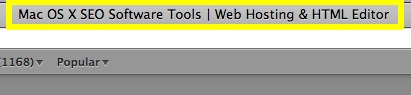
Page titles (also known as ‘Title Tags’) are one of the most important SEO elements. They can really give search engines a great understanding of what a website is about. Page titles are found at the top of your web browser. A good page title is keyword rich and accurately depicts the content of each web page.
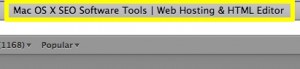
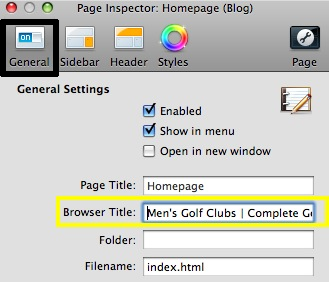
Changing your page titles in RapidWeaver is very easy to do. Simply highlight the page that you wish to update, and click on the Page Info button in the top right corner of RapidWeaver.

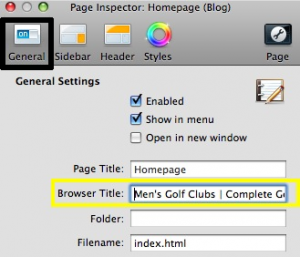
Under the General tab, locate the Browser Title field box, and enter your title tag. Remember to repeat this process for all of the pages on your website.
Here are a few tips to keep in mind when making your title tags:
- Do not make your title tags excessively long
- Make sure your title tag is relevant to the actual page
- Each page should have a unique title tag
Did you know?
Your title tag is not only important for search engine optimization, but it is also very important for getting users to click on your website in the search results? The title tag also appears as the clickable link in the search results, making it an important factor for encouraging visitors to go to your site. An uninteresting title tag will certainly turn away potential visitors, while an attractive, and relevant title tag will surely increase your traffic.

Page Description
The page description, much like the title tag, can be a very important factor for getting visitors to click on your website in the search results. A large majority of the snippets you see beneath the title tag in the search results come from the page description. Because of this, it is very important for us to create exceptional page descriptions that are keyword rich and are convincing to people who are viewing them in the search results.


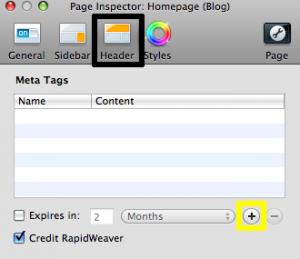
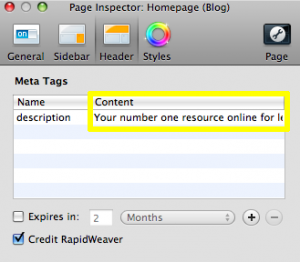
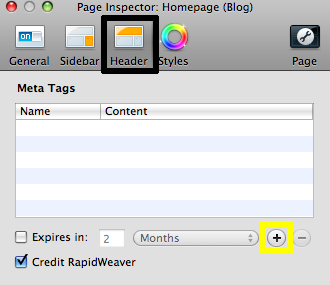
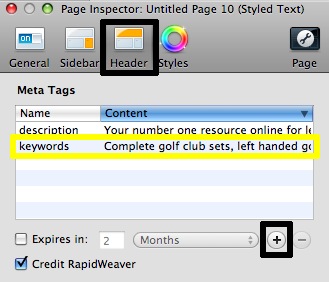
To change your page description in RapidWeaver, highlight the page that you wish to update, and click on the Page Info button. Ensure that the Header tab is selected. The next thing you are going to do is press the ‘Plus’ button which is located on the right hand side of the window, almost half way down.
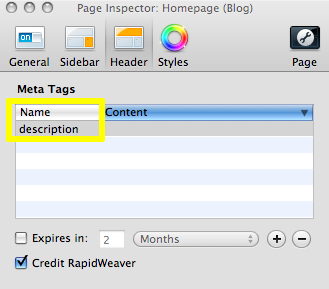
In the name field, type the word ‘description.’
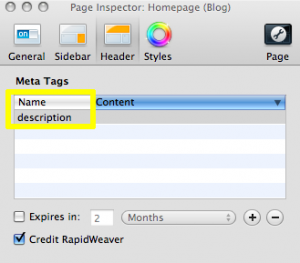
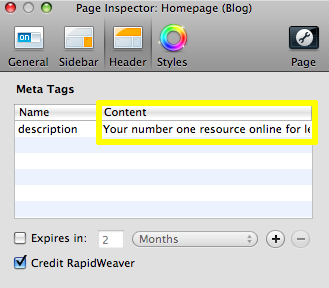
In the content field, type in your desired page description. Remember to make the description enticing enough for visitors to be interested in going to your website and learning more. Since every page on your website is unique, so should each page’s description. Keywords are bolded in the search engine snippet when they match up with the users search query, so make sure to use good keywords in your description.
Anchor Text
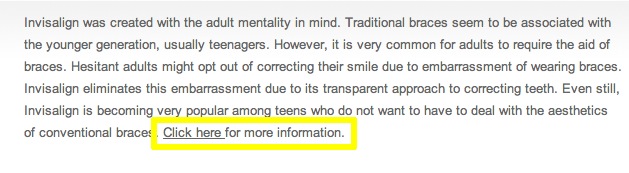
The text we use to link to other pages on our website (or to external sites) can play an important role for search engine optimization. You have probably seen many websites use the phrase “click here” when linking to one of their pages.
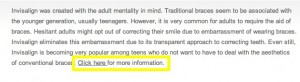
Using “click here” for the anchor is wasted opportunity. Whenever linking to pages within your website, it is best to use keyword rich anchor text. Search engines rely on anchor text to identify what a page may be about.

For example, let’s assume a website sells left handed golf clubs. There are many different websites linking to this website using the anchor text “Left handed golf clubs.” Search engines now know to relate this website to left handed golf clubs. The end result will be better rankings for this website for that exact phrase.

Alternative Text For Images
Image search engines have become increasingly popular over the years. While it may be difficult for search engines to understand what a picture is about, there are ways that we can help. Utilizing an images alt attribute can help us accomplish this. The benefit of this optimization is two-fold: Gaining more traffic from image searches, and being useful to users who are using browsers that do not support images.

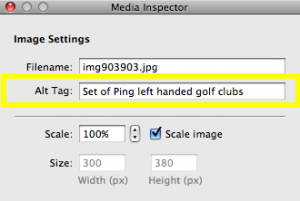
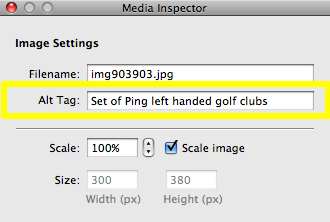
In RapidWeaver, select an image, and then press the Media Inspector button. In the Alt Image field, type in your Alternative Text for your image. Remember to be descriptive, while not keyword stuffing. Avoid making your alt text misleading in any way.
Meta Keywords
While many people are aware that meta keywords are not important to Google, there still may be some search engines that do take this attribute into consideration. Because of this, it is always a good idea to add some keywords to every page of our website.
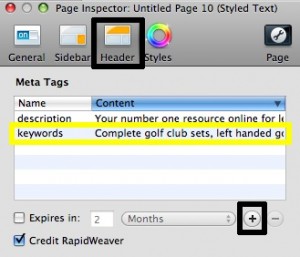
This process is going to be very similar to the page description process. Press the Page Info button, and make sure you are on the header tab. Press the ‘Plus’ button, and under the Name heading, type in ‘Keywords.’
In the content section, type in your keywords. Remember to separate each keyword or phrase with a comma. Do not add keywords or phrases which are irrelevant to your page. Keep this section to a minimum. Adding a bunch of keywords and phrases will not help your efforts. As an example, if this page was about left handed golf clubs, it wouldn’t make sense to add the phrase ‘Right handed golf clubs’ in the meta keywords. It would be more appropriate to save that phrase for your right handed golf clubs page.
Header Tags
In HTML, there are 6 header tags;
H1 is the “highest” and H6 is the “lowest.”
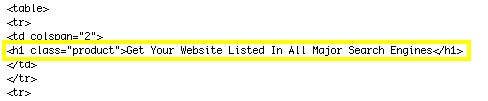
In search engine optimization, text within an H1 tag lets search engines know that the webmaster considers that text to be important. This gives a good indication to search engines as to what the page may be about.
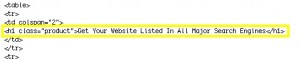
RapidWeaver does not offer the most flexible way for putting unique H1 tags on every page. Instead, we are able to add one H1 tag, and one H2 tag that is constant across all pages on our website.
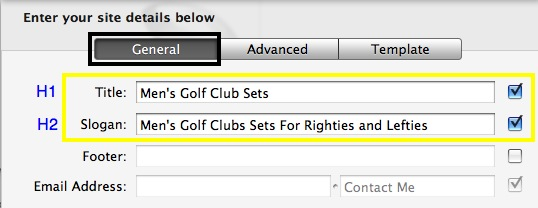
Click on the Setup button.

On the General tab, the Title is where our H1 tag goes, and the Slogan is where our H2 tag goes.
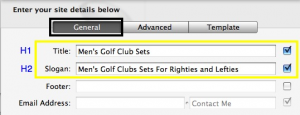
There are ways around this header situation, however, they are beyond the scope of this tutorial. For the time being, place any keywords you feel are appropriate for a header consistent throughout your entire site. If a business name is most appropriate, then that is what you should put as the header.








 Twitter
 Facebook
 Youtube
 Blog RSS